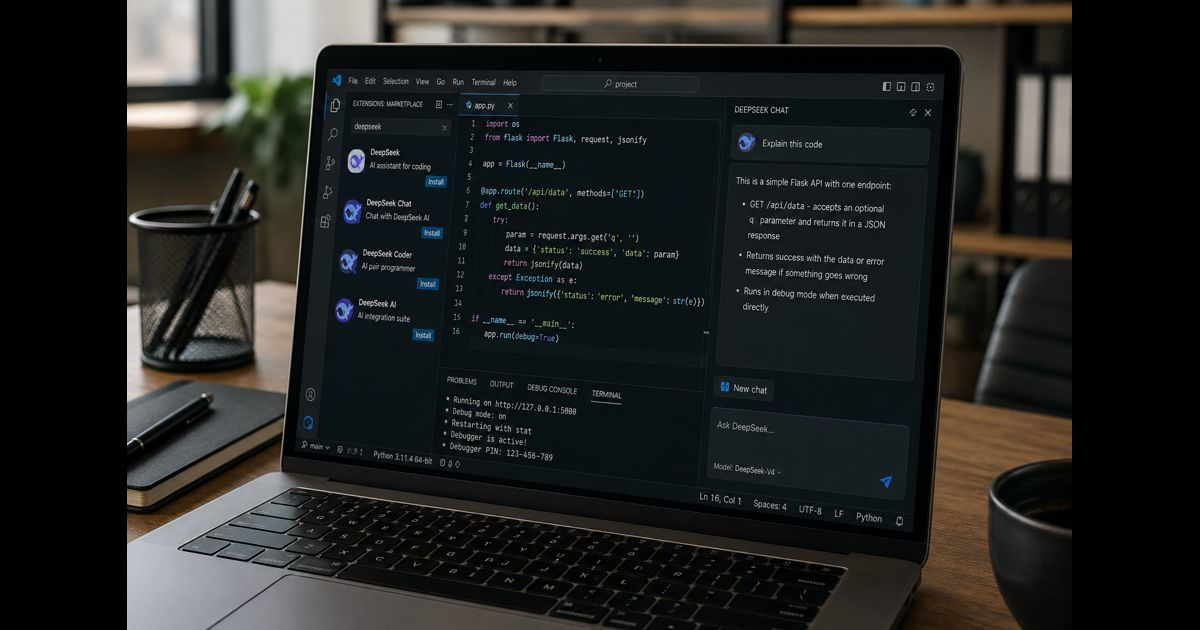
DeepSeek VSCode integration lets developers use DeepSeek models for code explanation, debugging, editing and agent-assisted development without leaving Visual Studio Code. The most direct current setup adds DeepSeek V4 models to GitHub Copilot Chat. Developers can also connect a compatible extension to the DeepSeek API or run a smaller open-weight model locally through Ollama.
These approaches are not interchangeable. The official Copilot integration provides the most straightforward experience, an API connection sends selected code and instructions to a cloud service, and an Ollama setup performs model inference on the developer’s machine. Choosing the correct route affects performance, privacy, hardware requirements and available coding features.
DeepSeek VSCode Setup at a Glance
|
Setup |
Model location |
Hardware demand |
Best for |
Main limitation |
|
DeepSeek for Copilot Chat |
DeepSeek cloud |
Low |
Simplest current V4 experience |
Requires Copilot and API access |
|
OpenAI-compatible VS Code extension |
DeepSeek cloud |
Low |
Flexible chat and editing tools |
Configuration varies by extension |
|
Ollama with a VS Code extension |
Local computer |
Moderate to high |
Offline control and private repositories |
Smaller local models may be slower or less capable |
Cloud access is generally the practical choice for complex repositories because the computer does not have to run the model. Local inference is more suitable when data-handling requirements justify the additional setup and hardware cost.
Before Installing DeepSeek in VS Code
Confirm the following before starting:
- Visual Studio Code is installed and updated.
- A trusted project folder is available for the first test.
- A DeepSeek API key has been created if using a cloud model.
- API billing or account balance is available where required.
- Git is enabled so generated changes can be reviewed and reverted.
- Repository secrets are stored outside files that may be shared with the model.
Visual Studio Code and Visual Studio are different products. Instructions for a VS Code extension do not automatically apply to Microsoft Visual Studio.
Method 1: Add DeepSeek V4 to GitHub Copilot Chat
DeepSeek’s documented Copilot Chat integration is the clearest option for developers who want current cloud models with familiar VS Code agent features.
Requirements
The integration requires:
- VS Code 1.116 or later
- A GitHub Copilot Free, Pro or Enterprise subscription
- The DeepSeek V4 for Copilot Chat extension referenced by DeepSeek
- A valid DeepSeek API key
Installation Steps
- Update VS Code to version 1.116 or later.
- Confirm that GitHub Copilot and Copilot Chat are working.
- Install the DeepSeek V4 for Copilot Chat extension from the repository identified in DeepSeek’s documentation.
- Open the Command Palette with Ctrl+Shift+P on Windows or Linux, or Cmd+Shift+P on macOS.
- Run DeepSeek: Set API Key.
- Paste the API key when prompted.
- Open Copilot Chat with Ctrl+Shift+I or Cmd+Shift+I.
- Open the model picker in the chat panel.
- Select DeepSeek V4 Flash or DeepSeek V4 Pro.
- Test the connection with a small, non-sensitive file.
The extension stores the key in the operating system’s secure keychain rather than writing it into the project. Do not add the key to source code, settings.json, a committed .env file or a prompt.
Confirm That the Integration Works
Open a simple source file and ask:
Explain this function’s inputs, output, side effects and likely failure cases. Do not modify the file.
A successful response should refer to the open code accurately. Next, request a small reversible edit and inspect the resulting diff. Do not begin with a repository-wide refactor because that makes configuration problems and weak model behavior harder to identify.
Choosing Between V4 Flash and V4 Pro
DeepSeek V4 Flash and V4 Pro support coding work, but they serve different workloads.
Use DeepSeek V4 Flash For
- Explaining a function or error message
- Writing routine tests
- Generating documentation
- Converting small code samples
- Renaming or simplifying isolated code
- Repetitive edits with clear rules
- Fast initial investigation
Use DeepSeek V4 Pro For
- Debugging behavior across several files
- Evaluating architecture decisions
- Planning a complex migration
- Tracing data flow through a repository
- Reviewing concurrency or state-management logic
- Coordinating several tools
- Investigating failures with multiple plausible causes
Flash is a sensible default for everyday work. Pro is better reserved for tasks where deeper analysis may prevent significant rework. A larger model does not remove the need for tests, security review or human approval.
Thinking Mode and Reasoning Effort
The Copilot integration allows the reasoning level to be adjusted from the model picker. The available choices include:
- None: prioritizes speed and direct output
- High: balances reasoning quality and response time
- Max: spends more effort on difficult problems
No reasoning is usually sufficient for formatting, documentation and predictable transformations. High is appropriate for normal debugging and feature work. Max is better suited to architecture, difficult defects and changes that cross several components.
Keeping maximum reasoning enabled for every task can increase latency and token use without improving simple edits.
Method 2: Connect a Compatible Extension to the DeepSeek API
Some VS Code assistants accept an OpenAI-compatible provider. Their labels and configuration files differ, but the essential values are:
|
Setting |
Value |
|
Provider type |
OpenAI-compatible or custom OpenAI |
|
Base URL |
https://api.deepseek.com |
|
Model |
deepseek-v4-flash or deepseek-v4-pro |
|
Authentication |
DeepSeek API key |
Use the exact base-URL field expected by the extension. Some clients automatically append the request path, while others expect a full endpoint. Adding /v1 or /chat/completions without checking the extension’s documentation can produce malformed URLs or connection failures.
An extension may support only chat even if the underlying model supports tool calls. Agent mode, terminal access, file editing, autocomplete and repository indexing are features implemented by the extension or agent harness, not by the model alone.
Method 3: Run DeepSeek Locally With Ollama
A local setup normally combines three components:
- Ollama runs the model.
- A downloaded DeepSeek model provides inference.
- A compatible VS Code extension connects to Ollama’s local service.
A typical starting command is:
ollama run deepseek-r1:7b
After the download completes, confirm the installed model:
ollama list
In the VS Code extension, select Ollama as the provider, use the local address shown by Ollama—commonly http://localhost:11434—and choose the exact model name displayed by ollama list.
Local Does Not Mean Full Cloud Performance
A downloadable R1 or DeepSeek Coder variant is not automatically equivalent to the current cloud-hosted V4 Pro model. Local models may be quantized, distilled or substantially smaller. This affects reasoning quality, coding accuracy, speed and the amount of repository context they can handle effectively.
Small models can explain short functions and produce routine code on modest hardware. Large repository analysis, agent loops and difficult debugging demand considerably more memory and processing capacity.
When Is Local DeepSeek Actually Private?
Local inference prevents prompts from being sent to DeepSeek’s cloud only when every part of the workflow remains local. Check whether the selected extension:
- Sends telemetry
- Uses a remote embedding service
- Uploads repository indexes
- Calls a fallback cloud model
- Routes requests through an external gateway
- Sends crash reports containing prompt data
“Powered by Ollama” is not enough to prove that the complete workflow is offline.
Which DeepSeek Coding Experience Do You Need?
Developers sometimes install an extension expecting every AI coding feature to appear automatically. It helps to separate the main capabilities.
|
Capability |
Purpose |
Important limitation |
|
Chat |
Answers questions about supplied code |
May not inspect the entire workspace |
|
Inline edit |
Rewrites selected code |
Can remove behavior outside the stated goal |
|
Autocomplete |
Predicts code while typing |
Requires low latency and specific extension support |
|
Agent mode |
Reads files, edits code and may run commands |
Needs strict permission and review controls |
|
Repository indexing |
Retrieves relevant files from a larger project |
Index quality and data location vary |
|
Tool calling |
Requests terminal, testing or other actions |
The surrounding extension executes the action |
Before choosing an extension, identify the capability that matters. A simple chat panel may be safer and sufficient for occasional explanations, while agent mode is more useful—and more consequential—for multi-file implementation work.
VS Code is only one interface. Developers who prefer a terminal-centered workflow can also connect DeepSeek to Claude Code or Codex, although each environment has its own configuration and permission model.
How to Evaluate a DeepSeek VS Code Extension
Several extensions use similar DeepSeek names. The name alone does not establish who built the extension or where it sends data.
Check:
- Publisher identity and verification status
- Linked source repository
- License
- Recent release activity
- Open security issues
- Requested permissions
- Number and quality of reviews
- Model-provider documentation
- API-key storage method
- Telemetry and privacy disclosures
VS Code extensions can read and write files, make network requests, modify settings and start processes with the permissions available to the editor. A large download count is useful context, but it is not a security guarantee.
Avoid installing an unknown .vsix package from a file-sharing page. If an extension must be built from source, inspect the repository, dependencies, release process and installation instructions first.
Protect Code, Credentials and Production Systems
A coding assistant may receive more information than the selected lines on screen. Depending on its design, it can read open files, workspace content, terminal output, diagnostics, Git changes and configuration files.
Before using cloud inference:
- Remove secrets from source files and terminal output.
- Exclude .env, credential, certificate and production-config files.
- Review company rules for third-party AI services.
- Open only the repository needed for the task.
- Keep unfamiliar repositories in Restricted Mode.
- Require approval before terminal commands or file changes.
- Review generated patches before accepting them.
- Run tests in an isolated development environment.
- Never give the agent direct production credentials.
Workspace Trust reduces automatic execution risks in unfamiliar folders, but it does not make an untrusted extension safe.
A Reliable DeepSeek Coding Workflow
1. Define the Result and Boundaries
State the required behavior, relevant files, constraints and completion test. For example:
Fix the duplicate-submission bug in the checkout form. Limit changes to the form component and its tests. Preserve the public API and explain the cause before editing.
This is more reliable than asking the model to “fix checkout.”
2. Request Diagnosis Before Modification
Ask the assistant to identify the execution path, evidence and assumptions. A plausible explanation is not proof; compare it with logs, tests and the actual code.
3. Keep the First Change Small
Limit early edits to the minimum set of files. Smaller diffs expose misunderstandings quickly and are easier to reverse.
4. Require Verification
Ask for tests that fail before the fix and pass afterward where practical. Then run the project’s real formatter, type checker, test suite and security checks.
5. Review the Diff Yourself
Check for:
- Unrequested dependency changes
- Removed validation
- Broadened permissions
- Hard-coded credentials
- Swallowed exceptions
- Changed public interfaces
- Weak or meaningless tests
- Deleted edge-case handling
- Large formatting-only changes
6. Commit Only Verified Work
Use a branch or clean Git state before agent-assisted changes. A passing generated test is insufficient if the test merely confirms the model’s own incorrect assumption.
Useful Prompts for DeepSeek in VS Code
Debugging
Trace this failure from the entry point to the thrown exception. Cite the relevant functions, separate confirmed facts from hypotheses, and propose the smallest testable fix.
Code Review
Review the current diff for correctness, security, backward compatibility and missing tests. Do not rewrite the code. Rank findings by severity and identify the exact affected file and behavior.
Refactoring
Refactor this module without changing observable behavior. Preserve exported names, error handling and log fields. First list the invariants, then make the smallest necessary changes.
Test Generation
Add tests for normal behavior, boundary values, invalid input and the reported regression. Do not change production code unless a test demonstrates that a change is required.
Repository Orientation
Explain how a request moves through this repository from input to persistence. Identify the entry point, validation, business logic, storage layer and error path. State which files you could not verify.
These instructions constrain the work and make the response easier to check. They do not guarantee correct code.
DeepSeek VSCode Troubleshooting
|
Problem |
Likely cause |
What to check |
|
DeepSeek does not appear in the model picker |
Old VS Code version, disabled extension or missing Copilot |
Update VS Code, enable both extensions and reload the window |
|
Authentication fails or returns 401 |
Invalid, revoked or incorrectly stored API key |
Set the key again and ensure no spaces were copied |
|
Request returns 402 |
Insufficient API balance |
Check the account balance and billing status |
|
Request returns 400 |
Unsupported request format or incompatible extension behavior |
Update the extension and reduce optional parameters |
|
Request returns 422 |
Invalid model or parameter |
Use a currently supported model identifier |
|
Request returns 429 |
Too many concurrent or rapid requests |
Pause automated loops and reduce parallel requests |
|
Request returns 500 or 503 |
Temporary server or capacity problem |
Retry after a short interval and preserve the prompt |
|
Local model is unavailable |
Ollama is stopped or the model name is wrong |
Run ollama list and confirm the local service |
|
Responses are extremely slow |
Oversized context, maximum reasoning or weak local hardware |
Reduce supplied files, lower effort or choose a smaller model |
|
Assistant cannot see a file |
File was not included in context or access is restricted |
Add the file explicitly and confirm workspace permissions |
|
Agent edits unrelated files |
Scope was too broad or approvals were permissive |
Revert the diff, narrow the task and restrict write access |
|
Autocomplete does not work |
Extension provides chat only |
Confirm that the extension specifically supports inline completion |
If an exposed API key was pasted into code, chat history, logs or a public repository, deleting the text is not enough. Revoke the key, create a replacement and review usage for unexpected activity.
Frequently Asked Questions
Is there an official DeepSeek extension for VS Code?
DeepSeek documents a V4 integration for GitHub Copilot Chat. Other extensions using the DeepSeek name may be independent projects and should be evaluated individually.
Can I use DeepSeek in VS Code for free?
GitHub Copilot has a free tier, but cloud requests may still consume DeepSeek API balance. A local Ollama setup avoids per-request API charges but uses the computer’s hardware and electricity.
Do I need a GPU?
A GPU is not required for the DeepSeek cloud API. Local models can run on a CPU, but larger variants are usually much more practical with sufficient GPU or unified memory.
Is DeepSeek VSCode the same as Cursor?
No. VS Code with a DeepSeek integration combines an editor, an extension or agent harness, and a selected model provider. Cursor is a separate AI-focused editor with its own features and service design.
Can DeepSeek edit an entire repository?
An agent-capable extension may read and modify multiple files, but access depends on the extension and permissions. Repository-wide changes should be divided into reviewable stages and verified with the project’s real test suite.
Does local DeepSeek send code to the cloud?
The model inference can remain local, but an extension may still use telemetry, remote indexing or cloud fallback services. Confirm the data flow of every component.
Should I use Flash or Pro for coding?
Use V4 Flash for routine explanations, tests and small edits. Use V4 Pro for difficult debugging, architecture and multi-file reasoning. Both still require human review.
Why does an older tutorial show deepseek-chat or deepseek-reasoner?
Those names belong to an earlier API generation or compatibility setup. New configurations should use the current identifiers supported by DeepSeek and the selected extension.
Final Thoughts
DeepSeek VSCode works best when the installation method matches the actual requirement. The Copilot Chat integration is the simplest route to current DeepSeek V4 models. An OpenAI-compatible extension offers more flexibility, while Ollama provides local inference for users prepared to manage hardware and extension behavior.
Model capability is only one part of a reliable setup. Extension trust, API-key storage, workspace permissions, precise prompts, controlled edits and independent testing determine whether the assistant improves development work or creates harder-to-detect problems.